
Create your account and club
Use an email address you can access now, and have your club name and contact phone number ready. If you already have a Klubownik account, sign in to it rather than creating another account for the same club.
Open the start page
Section titled “Open the start page”- Open Start for free.
- Read the trial and country availability information.
- Select Create your club. Registration uses the shared account service at www.klubownik.pl; the English interface and your next step are preserved.
The first club of a new owner starts a 30-day trial without a payment card. Additional clubs use the owner’s subscription; creating another club does not start another free trial.
If a club invited you as a parent, participant or coach, use that club’s invitation instead of creating a new club.
Create your account
Section titled “Create your account”- Check that Create account is selected.
- Enter your email address in Email. This is where the verification code will arrive. A child’s login is for signing in to an existing account.
- Enter a password and repeat it. Follow the requirements displayed under the field: at least eight characters with upper- and lower-case letters, a number and a special character.
- Open and read the documents linked below the form. Confirm acceptance only if you are authorised to represent the entity creating the account or club.
- Choose whether to receive optional emails about Klubownik. This choice is separate from the required documents and is not needed to create an account.
- Select Create account when the required fields and confirmation are complete.
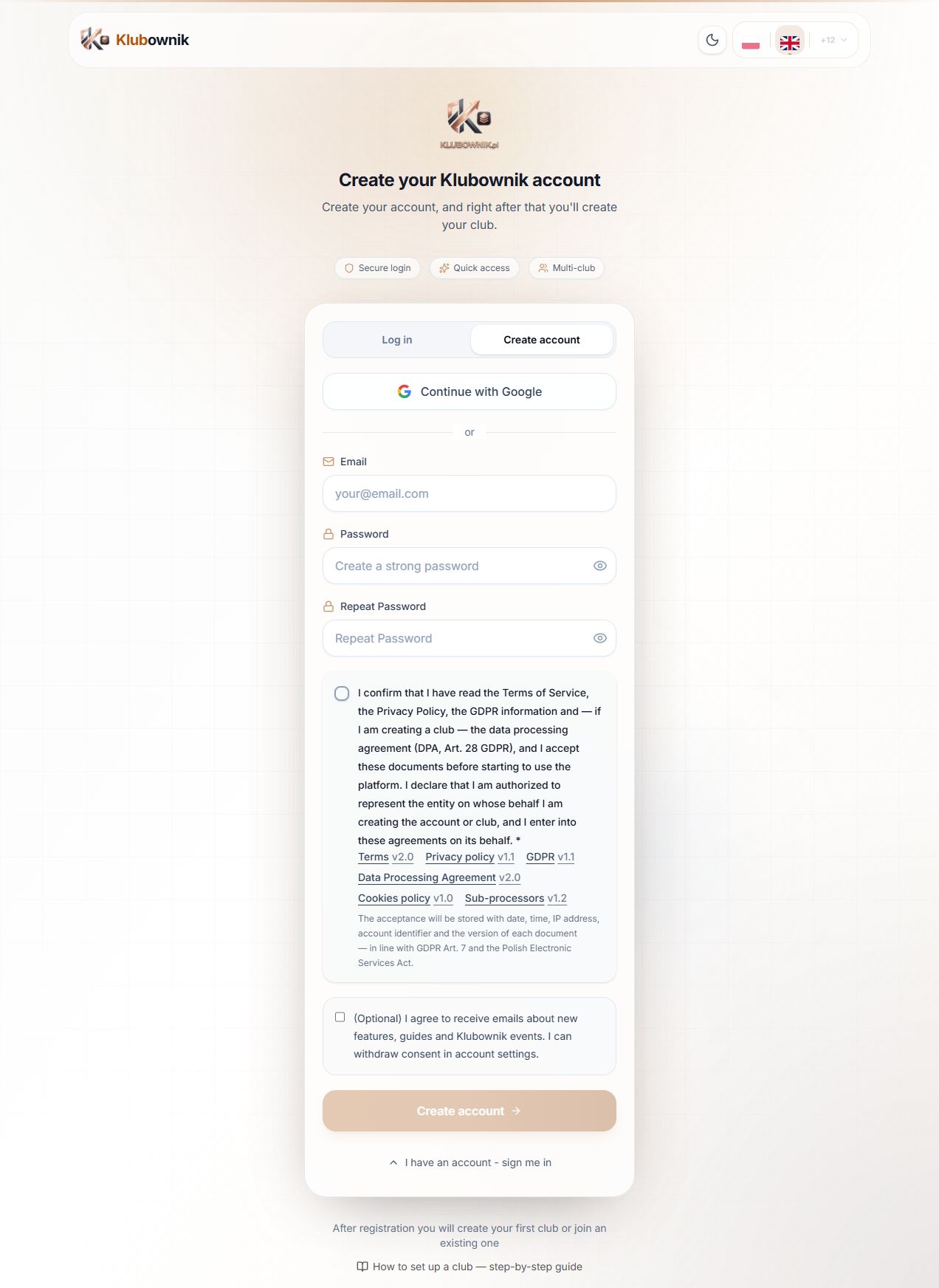
The illustration shows the public English registration form before any personal data is entered. Read the document versions displayed in your own session.
You can also select Continue with Google and follow its sign-in and document confirmation steps. You do not set a separate Klubownik password or enter the email verification code for that route.
Verify your email address
Section titled “Verify your email address”- Open the email from Klubownik and find the six-digit verification code.
- Return to the registration tab and enter it in Verification code.
- Select Verify code.
If the message has not arrived, check Spam and other inbox categories. Use Resend code if needed. A code is valid for 60 minutes; use the current code rather than sharing it with another person.
If you entered the wrong email address, return to the sign-in screen and correct the registration address. Do not put your password or verification code in a support message.
Choose to run your own club
Section titled “Choose to run your own club”After account verification, Klubownik may ask what you want to do. Under I run a club, select Create my own club. The other route is for people joining an existing club.
If you already own a club, check your existing dashboard before starting another one. An existing parent account can be used to create your own club; a second personal account is not required.
Enter your club details
Section titled “Enter your club details”- Enter the club’s name and wait for the availability check. A connection error does not confirm that a name is free; use the displayed retry action.
- Choose the actual country and time zone. The club currency is separate from the currency used for the Klubownik subscription. Review these values before setting prices and class times.
- Choose Club type and the appropriate discipline. The general route supports different activities; martial arts and shooting have their own modules and settings.
- Read the documents shown for your configuration and confirm them yourself.
- Select Go to club when the required information is complete.
If the required documents for your country are unavailable, acceptance remains disabled and a contact route is shown. A temporary loading error is a separate state: retry the read without changing your actual country. An owner’s existing billing profile may determine the country used for documents, which can differ from the new club’s country.
If the result is not confirmed
Section titled “If the result is not confirmed”Keep the form and its entered details. A timeout or lost response does not tell you whether the server created the club.
If the screen allows you to retry Go to club, continue the same attempt. Do not choose Start over merely because the answer was lost. In the same browser and account, a saved draft can preserve that attempt after a reload; read the documents and confirm acceptance again.
If draft storage was cleared or blocked, check your dashboard before creating another club. If a message concerns unconfirmed document acceptance, reload and check the club and document state first. Do not assume that the club itself was not created.
If you are editing an already created club, Reload saved data reloads that club’s stored information after confirmation. It does not create another club. A draft belonging to another account will not fill your form.
Complete the first setup
Section titled “Complete the first setup”When asked to Add your phone number, enter the contact number and save it. Then use the dashboard’s first-step checklist to prepare:
- A location where classes take place.
- A group and its capacity.
- The class schedule in the club’s time zone.
- Registration access and the relevant fee rules.
Review participant and staff access, documents and available payment methods before inviting real families. Enabling a module does not connect a payment provider by itself. A confirmed club creation does not confirm delivery of a welcome message or readiness of an additional web address; you can use the main Klubownik dashboard.
For other topics, the guide index identifies the available English content. The detailed Polish owner guide includes additional illustrated troubleshooting steps in Polish.