
Switching to Klubownik from Excel or another system
You upload the list of participants and guardians from a file, check the column mapping and the preview, and missing groups are created automatically. You can export data from Klubownik to Excel.
A new owner’s first club starts with a 30-day trial without a card. Additional clubs use the owner’s subscription.
Core features in every plan · 30 days free, no card
In short
Move data from an XLSX/CSV file, including a WodGuru, MAAT or eFitness export. In Settings → Import and export, the wizard suggests column mappings for you to confirm after reviewing the preview. Import covers participants, guardians, groups, training locations and payments from month columns; schedules, attendance history and invoices are not imported. Undo within 72 hours has limits: fields filled in for existing participants remain, and later payments, refunds, invoices or related records can block the entire operation. Export your data to Excel. Use the Settings Questionnaire to request free club setup and data import from a file.
See the import before saving
Real wizard screens with fictional data, in Polish. Open them in a new tab to enlarge.
 Enlarge screenshot (new tab)
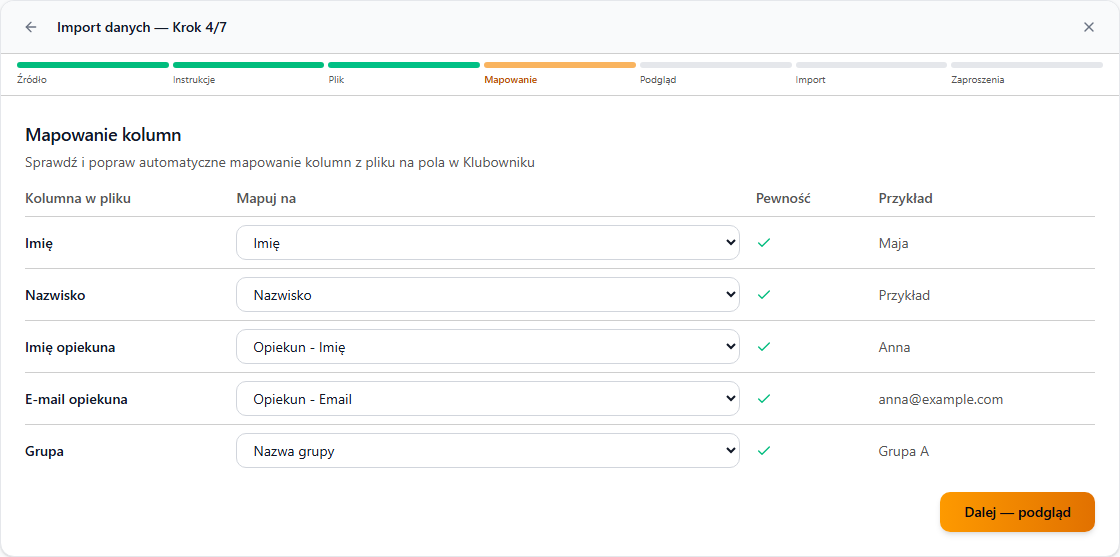
Match the columns
Match columns in your file to participant, guardian and group fields.
 Enlarge screenshot (new tab)
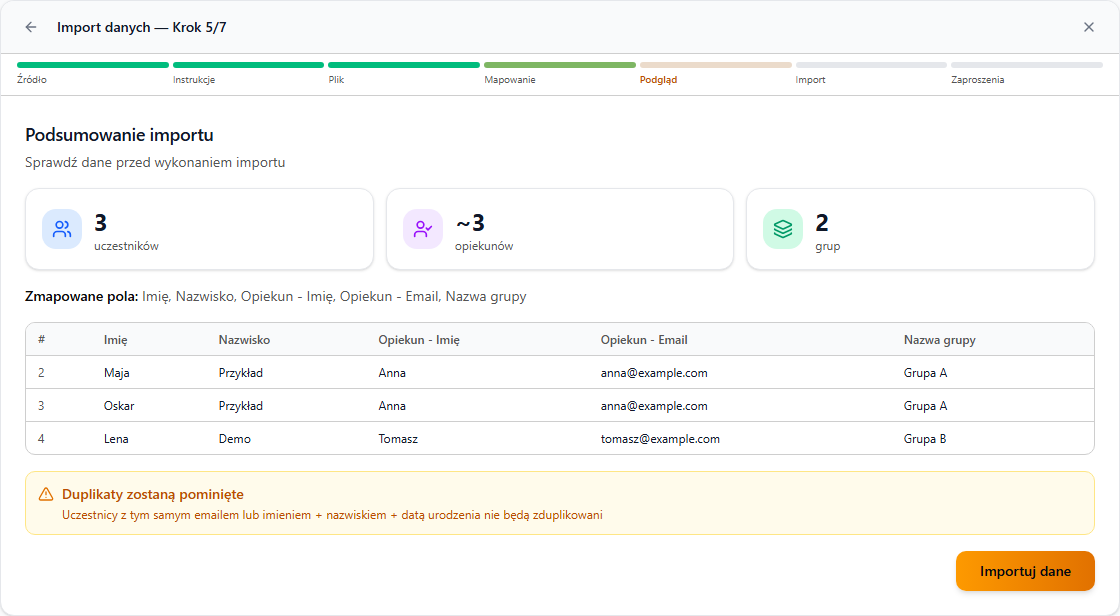
Check the preview
Review the first rows and mapped fields before starting the import. Participant import starts after confirmation.
How it works
Prepare the file
Excel (.xlsx) or CSV with headers in the first row — only the first and last name are required. From WodGuru, MAAT or eFitness, you download the export file, and the wizard shows the instructions.
Check the column mapping
Klubownik suggests which column is the first name, guardian, group or monthly payment. You correct the mapping and see how many participants, guardians and new groups will be created.
Import the data
Participant and guardian profiles and missing groups are created. People who are already in the club are not duplicated, and the import goes into the import history.
Passes and parent accounts
After the import, you assign passes in Finance, and from the Participants List you send parents invitations to create an account.
What you get
Import from Excel and CSV
An .xlsx or .csv file of up to 4 MB. Klubownik matches columns by header name and content, and you can change any mapping before the import.
Files from WodGuru, MAAT and eFitness
You choose the system you are moving from, and the wizard shows the export instructions and recognises headers typical of that software. You work with a file — no account linking.
Groups and guardians without duplicates
Missing groups are created automatically, without a schedule for now. The guardian from a row is linked to the child, and a person with the same email, or the same first name, last name and date of birth, is not created a second time.
Payments from month columns
An amount in a month column, e.g. “Jan.26”, is recorded as a paid fee for that month in the participant’s group. If the header has no year, you enter it in the wizard.
Undoing an import
An administrator can undo an import in its history within 72 hours if the current data allows it. Fields filled in for existing participants remain. New payments, refunds, invoices or related records added later can block undoing the entire import.
Data export to Excel
In Administration → Export Data, you download participants, guardians, groups, payments and attendance. You select sensitive data, such as the PESEL (Polish national ID number) or address, for export yourself.
Good to know
- The import transfers participants, guardians, groups, training venues and payments from month columns. It does not transfer attendance history, the class schedule, passes, invoices or documents.
- Klubownik does not connect to WodGuru, MAAT or eFitness — you load an .xlsx or .csv export file. One row is one participant with one guardian and one group.
- The import will not exceed the participant limit of your plan. If the file contains more people than there are free places, the import will not run.
Frequently asked questions
Can I transfer attendance and payment history?
Not attendance history. You can transfer payments if the file has month columns with amounts — they are recorded as paid fees in the participant’s group. The import does not transfer invoices, and you assign passes after the import.
How will parents get access to the panel?
After the import, open the Participants List and select “Invite to create account”. For a child, the link goes to the guardian’s email, and an adult participant gets it at their own address. The link is valid for 7 days.
Will you help us migrate the data?
Yes, free of charge. You fill in the Settings survey in Settings, and we set up the club based on your answers and import the data from your file.
How much does Klubownik cost?
Plans differ by the limit of active participants, text messages and file storage — the features are the same. Monthly prices incl. VAT: Starter PLN 49 (up to 50 participants); Standard PLN 99 (up to 150 participants); Pro PLN 179 (up to 500 participants). Paying yearly costs less, and the first 30 days are free, no card.
Ready for professional club management?
Create your club and try Klubownik with your own club’s data. The first 30 days are free.
A new owner’s first club starts with a 30-day trial without a card. Additional clubs use the owner’s subscription.
No credit card required • Core features and an industry module for 30 days, up to 500 participants