Attendance on a coach's phone: introducing the team to a shared register
Prepare class lists, access and one attendance routine. Includes offline synchronisation, QR check-in and the seven-day limit before queued changes need review.
Moving attendance from paper to a coach's phone starts with a prepared class list and one routine the whole team understands. Set up groups, schedules and access before inviting staff. Show each coach how to open today's class, mark the list and check that the result has reached the club. Attendance records then support the club's other processes, including make-up classes, reporting and configured coach pay.
Why the paper list affects more than attendance
A paper register can work during a class, but somebody else may need the same information later:
- Coach pay: a payment based on classes taught or participants present needs reliable class records.
- Passes and make-up classes: a family asks how many visits remain or which absence can be made up.
- Attendance review: the club needs to notice when a participant stops attending rather than discover it only at the next payment.
- Cover: a substitute coach needs the right group list even when the usual coach is absent.
The coach still records who attended. The change is where that information becomes available. A digital list only helps if it is completed and synchronised; a phone on its own does not make the record accurate.
Prepare the system before inviting the team
- Create groups and check their participant lists.
- Set the weekly schedule, including days, times and the dates for which it applies. The day's attendance sessions depend on this information.
- Assign the right coaches to the groups and actual classes.
- Choose access settings. Decide whether a coach should see only their groups and whether their role needs family contact details.
- Agree the absence process: who reports an excused absence and by what deadline.
Check one real group before rolling the process out to everyone. An empty list, an outdated schedule or an unrelated group on the first screen creates work for the coach before they have even started.
In the first walkthrough, teach one routine
Use the coach's actual phone before or after a class. A demonstration on the office computer will not show whether the screen and connection work at the venue.
- Sign in: use the coach's own account. The browser panel can be added to the home screen for easier access.
- Find today's class: check the group, date and start time before opening the list.
- Mark attendance: use individual entries or “all present”, then correct the people who are absent. Check the whole list before leaving it.
- Record an excused absence: show the supported option and explain the club's rule for using it.
- Check photo permission: show where the list indicates participants without permission for photographs.
Ask the coach to complete the next list themselves, then check the saved result from the club panel. Note their questions so the next walkthrough answers them. For a larger team, start with one coach, review the first few classes and use what you learn when helping the others.
Answer the practical concerns
- “I do not want to use my phone throughout class.” Agree a short attendance point, such as the beginning of the session, then put the phone away.
- “I do not want to use a personal device.” Decide the club's device arrangement before making the phone register a requirement. A club device may be more appropriate.
- “What if I make a mistake?” Give the coach a named contact and a clear correction process. An error reported on the day is easier to review than one reconstructed at month end.
- “There is no signal in the hall.” Test the actual offline workflow before relying on it.
With poor reception, open the list while online
Open the relevant list before entering an area without reception. Confirm that the participants and class are visible. After marking attendance offline, check the synchronisation state when the connection returns. Until it is sent successfully, the club's central record may not include that change.
Do not assume every browser sends queued changes in the same way. Keep the panel available, sign in with the same account and resolve any item that requires review. Choose a fallback for a device failure and reconcile it afterwards instead of treating two separate registers as equally authoritative.
When QR check-in is useful
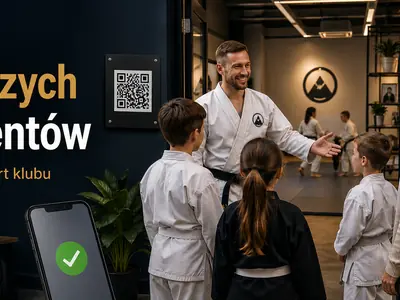
A coach's list is often sufficient for a regular children's group. QR check-in can help with open sessions, visit-based passes and adult classes where attendance varies. Staff can scan a participant's code, or the club can enable a supported self-check-in route.
Choose the route deliberately. A participant code shown to staff and a class or group code scanned by a participant are different workflows. Explain which one the club uses and keep an alternative for anyone without a suitable device.
Build the habit during the first weeks
- Review classes with incomplete attendance each week and ask what prevented completion.
- Agree that the list is completed on the class day, at a practical point in the session.
- Show where attendance is used, including coach pay if the club enables a rate that depends on it.
- Keep one agreed record. If a temporary paper fallback was needed, have a named person enter and check it.
How this works in Klubownik
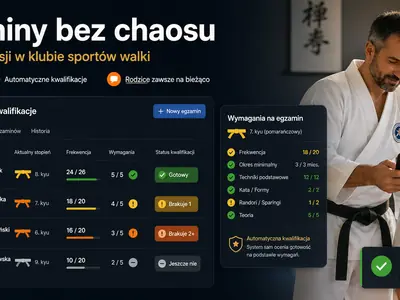
In Attendance, the coach opens today's scheduled session and its group list. They can mark people individually or use “all present”, record excused absences and see who lacks photo permission. Staff use the browser panel on a phone or add it to the home screen; the parent and participant Android app is a separate product surface.
- Offline marking: changes on a list opened while online can be queued on that device. Browsers supporting Background Sync, such as compatible Chrome or Edge installations, can attempt sending in the background. Safari and Firefox use the open panel to retry when connectivity returns. Delivery still depends on connection, authentication and the result of the request.
- Review of older changes: automatic retry is limited to seven days. Older queued items require the author's manual review; they are not automatically discarded. Review can also be required earlier after a conflict or repeated failure. Check the queue before assuming the central list is complete.
- Online functions: opening a fresh list, QR scanning and the parent panel require internet access.
- A participant's QR code: staff use QR check-in to scan the code from the parent panel. The code changes every 30 seconds and is single-use.
- Self-check-in: a participant scans the class code shown by the instructor or a printed group code during the permitted time window around the session. Self-check-in and the permanent printable code are off by default and must be enabled in the attendance settings.
- Coach access: enabling the relevant restriction limits the coach's attendance view to their groups. Other permissions, including family contact access, are configured separately.
- Reporting: saved attendance feeds attendance summaries, season PDF reports and Excel export. Configured coach earnings can also use it.
Klubownik does not provide PIN or NFC-card check-in. See attendance and QR check-in, coach pay and the shared tools for sports clubs before choosing the process for your team.
Frequently asked questions
Does the coach need to install an app?
No separate native app is required for this workflow. A coach uses the browser panel, optionally added to the phone's home screen. The Google Play app is intended for parents and participants.
What happens if the hall has no reception?
Open the list while online. Supported attendance changes can then be queued locally. Return online and check that they were sent. Keep the panel open where background sending is unavailable, and review any blocked or older item.
Can a coach see only their own groups?
Yes, after the club enables that attendance-view restriction. Set the other permissions separately. QR scanning is available to club staff with the supported access.
Try the workflow with sample data
The demo asks for your email and activity type before entry and uses sample club data. Explore the coach and club panels.